Best Google Meet Backgrounds for Meetings & Video Calls
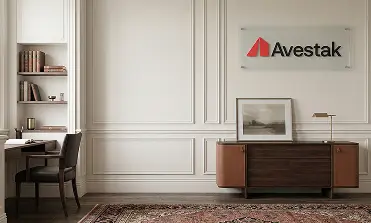
Virtual backgrounds optimized for Google Meet's browser-based rendering. Sharp, professional designs that look clean on every video call — whether you're in Chrome, on mobile, or using the Meet app. Add your company logo for branded backgrounds your team can use across Google Workspace.
No backgrounds yet
Backgrounds will appear here once they are added.
How Google Meet Backgrounds Work
Google Meet processes virtual backgrounds differently from Zoom or Microsoft Teams. Meet runs its background rendering through the browser, which means image quality, segmentation, and performance are all tied to your browser and hardware — not a dedicated desktop app. This creates specific design requirements that generic background images often don't account for.
Our Google Meet backgrounds are built for this reality:
- Browser-optimized file sizes — Compressed for smooth rendering in Chrome, Edge, and Safari without sacrificing visual quality
- Color accuracy — Calibrated for Meet's rendering pipeline, which can shift tones slightly compared to desktop apps
- Edge-conscious design — Clean compositions that minimize segmentation artifacts around hair and shoulders
- Proper aspect ratio — 16:9 matching Google Meet's video frame to prevent cropping or letterboxing
Google Meet vs. Other Platforms
Google Meet has improved its virtual background support significantly, but it still differs from Zoom and Teams in a few ways. Meet relies on browser-based processing, which means older machines or browsers may see more segmentation artifacts. The background is also applied slightly differently when using Meet on mobile versus desktop.
If your team uses Google Workspace, Meet is likely your primary video platform — and your virtual backgrounds should be designed with its specific behavior in mind, not just resized from a Zoom template.
Branded Google Meet Backgrounds
For Google Workspace organizations, branded virtual backgrounds bring visual consistency to every Meet call. Your company logo and brand colors are integrated into professionally designed scenes, so every team member — from sales to leadership — presents a unified image.
This is especially useful for organizations that have standardized on Google Workspace and want their meeting presence to reflect the same polish as their documents, slides, and email communications.
Setting Up Your Google Meet Background
To set a custom background in Google Meet, click the three dots in your meeting controls, select "Apply visual effects," then upload your background image. For a detailed walkthrough, see our Google Meet background setup guide.
Get Your Google Meet Backgrounds
VirtualBackgrounds delivers Google Meet backgrounds that are designed, tested, and optimized for how Meet actually works. Choose from professional offices, minimal gradients, or industry-specific designs — and create yours in minutes.
Frequently Asked Questions
In a Google Meet call, click the three-dot menu, select "Apply visual effects," and upload your custom background image. You can also set it before joining a meeting from the preview screen.
We recommend 1920x1080 pixels in 16:9 aspect ratio. Google Meet will scale the image to fit, but starting at this resolution ensures the sharpest results.
Yes. Google Meet supports custom virtual backgrounds on mobile devices (iOS and Android), though the feature availability may depend on your device hardware.
Yes. Google Meet uses AI-based segmentation and does not require a green screen. Background quality depends on your lighting and hardware.